
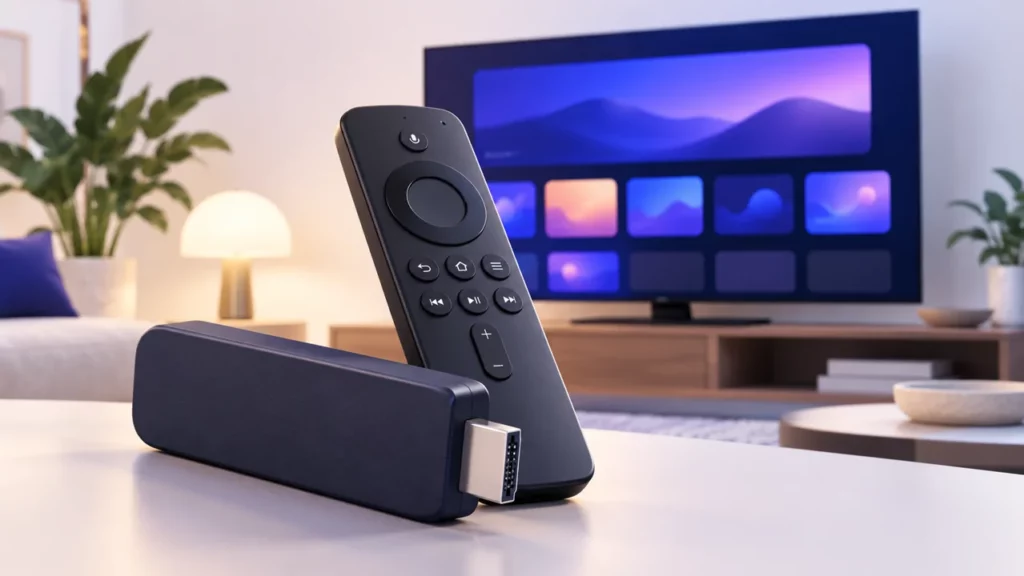
To set up IPTV on Firestick (Amazon Fire TV Stick), start by checking which player is compatible with your exact device. Store availability can vary by country and model. This guide walks through app installation, subscription login and the checks to make if playback does not start.
1. Prepare the device and connection
- Connect your Fire TV to the TV and its power supply, then complete the normal device setup.
- Check that the Home screen loads and the device connects to your network.
- Have your subscription activation message and player name ready.
- Stop the subscription on any other device before testing it here.
If you are unsure which player to choose, send support the Fire TV model and country of your app store. Do not assume that an app available on an Android phone is available on every Fire TV device.
Before selecting a subscription, use the IPTV service comparison checklist. For another device, browse the IPTV setup guides by device.
2. Find and install the compatible app
On the Fire TV main menu, open Find and search for the player name. You can also use the voice search button on a compatible remote. Select the correct app listing and choose Get or its download option, then open the app after installation.
Check the publisher and any app price before downloading. If the expected player is unavailable, ask support for a compatible option. Avoid installing an unrelated app with a similar name or entering your subscription into an app you have not verified.
3. Use the login format supplied with your subscription
Player screens differ, so match the option to your activation message rather than selecting a login method at random.
- If your message contains a server URL, username and password, use the player option that asks for those three values.
- If it contains a playlist URL, use the playlist option and enter the complete address.
- If the player requires a device identifier, follow its activation instructions and confirm the identifier with support.
- Check for missing characters or spaces, save the details and wait for the channel list to load.
- Play one channel first, then test a second. Load the TV guide separately if the player has a guide refresh option.
Keep login details private. A playlist URL may contain account credentials even if it looks like an ordinary web address.
4. Check the symptom
The app opens, but login fails
Recheck the selected login method, server address and credentials against the activation message. Confirm that the subscription is active. Reinstalling the app will not fix a mistyped password.
The channel list appears, but video stops
Close playback on another device. Then check the Fire TV network connection. Amazon provides a network status tool under Settings → Network; follow the on-screen prompt for diagnostics. Available tests depend on the device.
Other apps are also failing to connect
Restart the device and check your home network. If several devices have lost internet access, investigate the connection with your internet provider before changing the player settings.
Tell support the device model, player name, error message and whether other apps work. Use the buffering checklist or contact SOS IPTV support.